How to create a CASE record along with Customer Field (Polymorphic Lookup)
- Sai Krishna
- Aug 2, 2020
- 1 min read
Updated: Aug 2, 2020
Since CUSTOMER Lookup is a combination of both Contact and Account entities, we cannot directly use it in Forms or Patch operations
This can be achieved in two ways (both require two different combo box controls on the form)
Using Patch
Using Form
Using Patch:
Create a canvas app
Add Cases, Accounts and Contacts entities from Data Sources
Add a From Control and map it to Case entity
Add required Data Cards to it (Do not include Customer field)
Add a Radio Button
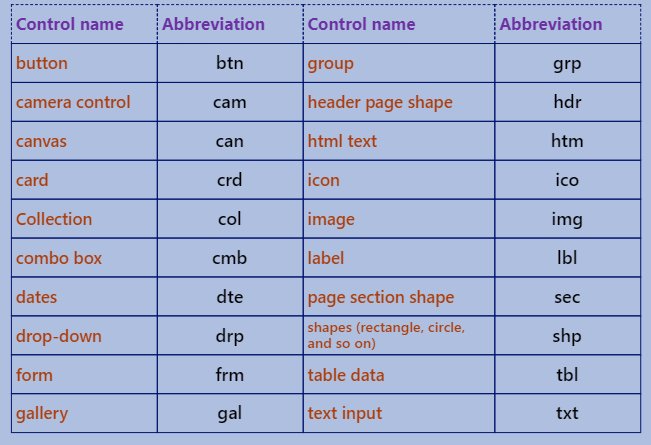
Add Two Combo Boxes and name them cmbAccounts and cmbContacts. Select cmbAccounts control and update its “ITEM” property with Accounts entity and for cmbContacts use “Contacts” against its Item property.
Place the combo boxes on top of another (basically first cmbAccounts and on top of it cmbContacts)
Select Radio button and go to “On Select” event and add below expression
If(Radio2.Selected.Value="Accounts",Set(varCMBAccounts, true);Set(varCMBContacts,false),If(Radio2.Selected.Value="Contacts",Set(varCMBAccounts, false);Set(varCMBContacts, true)))

Select Accounts Combo box-> Visible -> varCMBAccounts
Select Contacts Combo box -> Visible -> varCMBContacts


Now, on select of “Create Case” button – use the following expression to create a new Case Record
Patch (Cases, Defaults (Cases),{'Case Title':DataCardValue1.Text},Subject:DataCardValue2.Selected},{Customer:If(Radio2.Selected.Value = "Accounts", cmbAccounts.Selected, If(Radio2.Selected.Value = "Contacts",cmbContacts.Selected))}); ResetForm(Form1)
Using Form Control (Submit Form (<<Form Control Name>>)):
Create a canvas app
Add Cases, Accounts and Contacts entities from Data Sources
Add a From Control and map it to Case entity
Add required Data Cards to it and include Customer Data Card too
Hide the Customer Data Card (Visible -> false)
Please follow the same steps above from 6 to 10.
Now, select the “Customer” Data Card on the Form and go to “Update” property and add
On “Create Case” button:SubmitForm(Form1); ResetForm(Form1)


Comments